Figranium provides several mechanisms to make your automation tasks resilient to failures — from optional actions to retry loops and fallback sub-tasks.

Why Tasks Fail

Common failure modes in browser automation:
  • An element takes longer than expected to appear (timeout)
  • A popup or modal interrupts the expected flow
  • A network request fails or times out
  • A selector becomes stale after a navigation
  • A CAPTCHA is triggered
  • Dynamic content changes the page structure
A well-designed task anticipates these failures and handles them gracefully.

The on_error Block

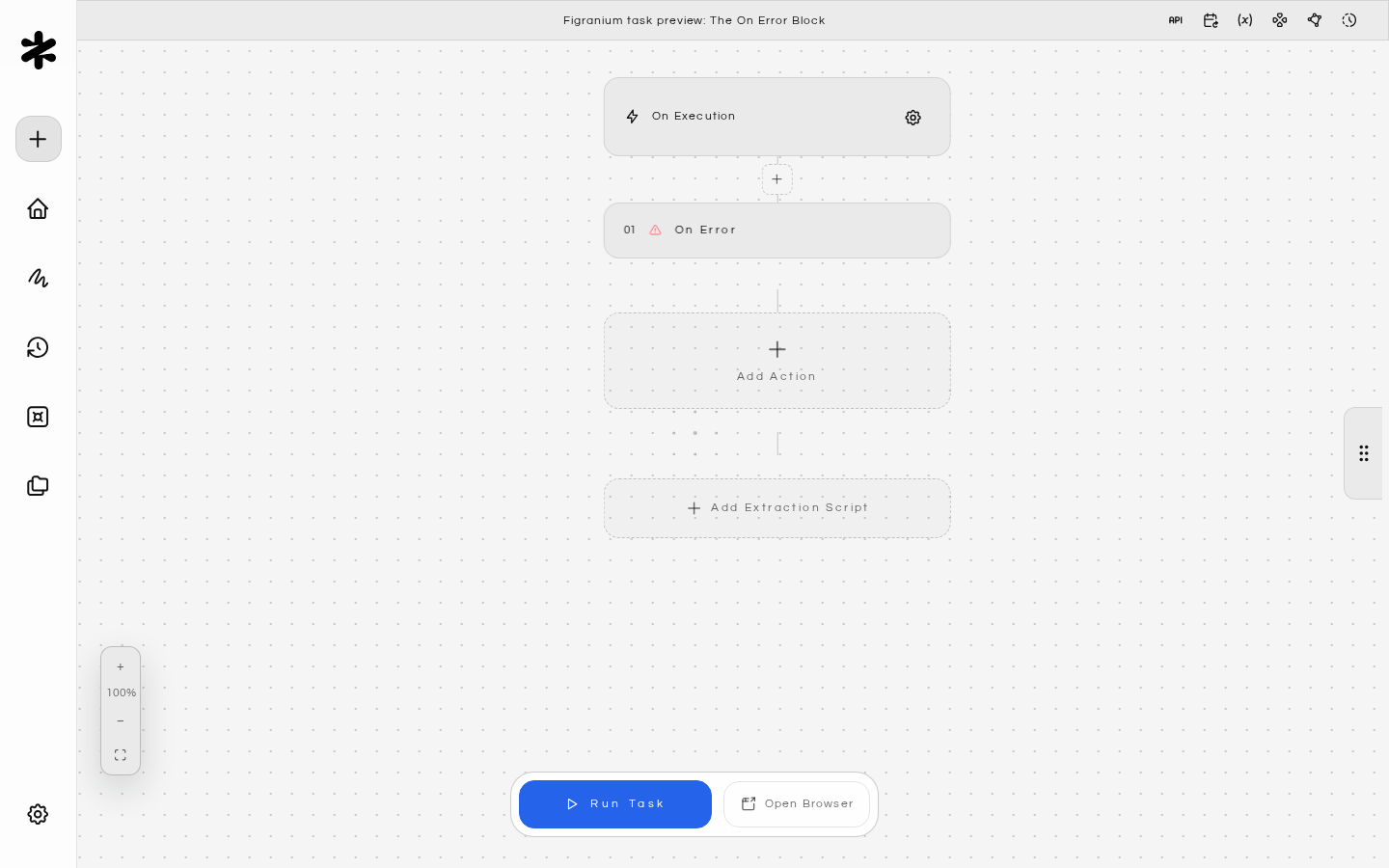
The on_error block is Figranium’s primary error handling mechanism. It works like a try/catch: if any action in the main flow raises an error, execution jumps to the on_error block.
{ "type": "on_error" },
  // recovery actions
{ "type": "end" }
The on_error / end pair should be placed in the task to catch errors from preceding actions. Any error thrown by an action before the on_error block is caught.

Making an Action Optional

The simplest use: place an empty on_error/end block to absorb errors from an action that may or may not exist:
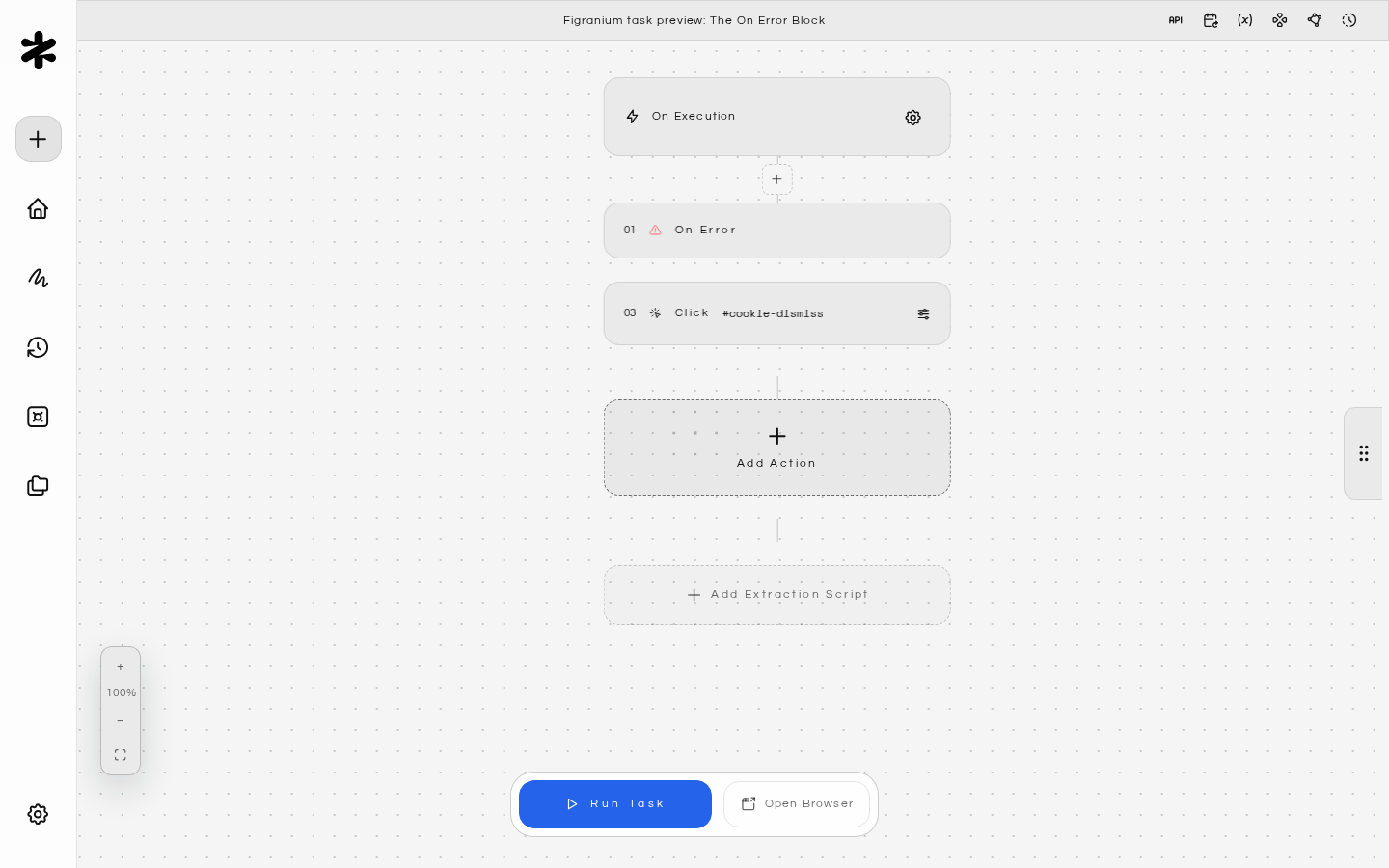
// Dismiss a cookie banner only if it appears — ignore if it doesn't
{ "type": "on_error" },
{ "type": "end" },
{ "type": "click", "selector": "#cookie-dismiss", "timeout": 3000 }

Fallback Action

Perform a fallback action when the primary approach fails:
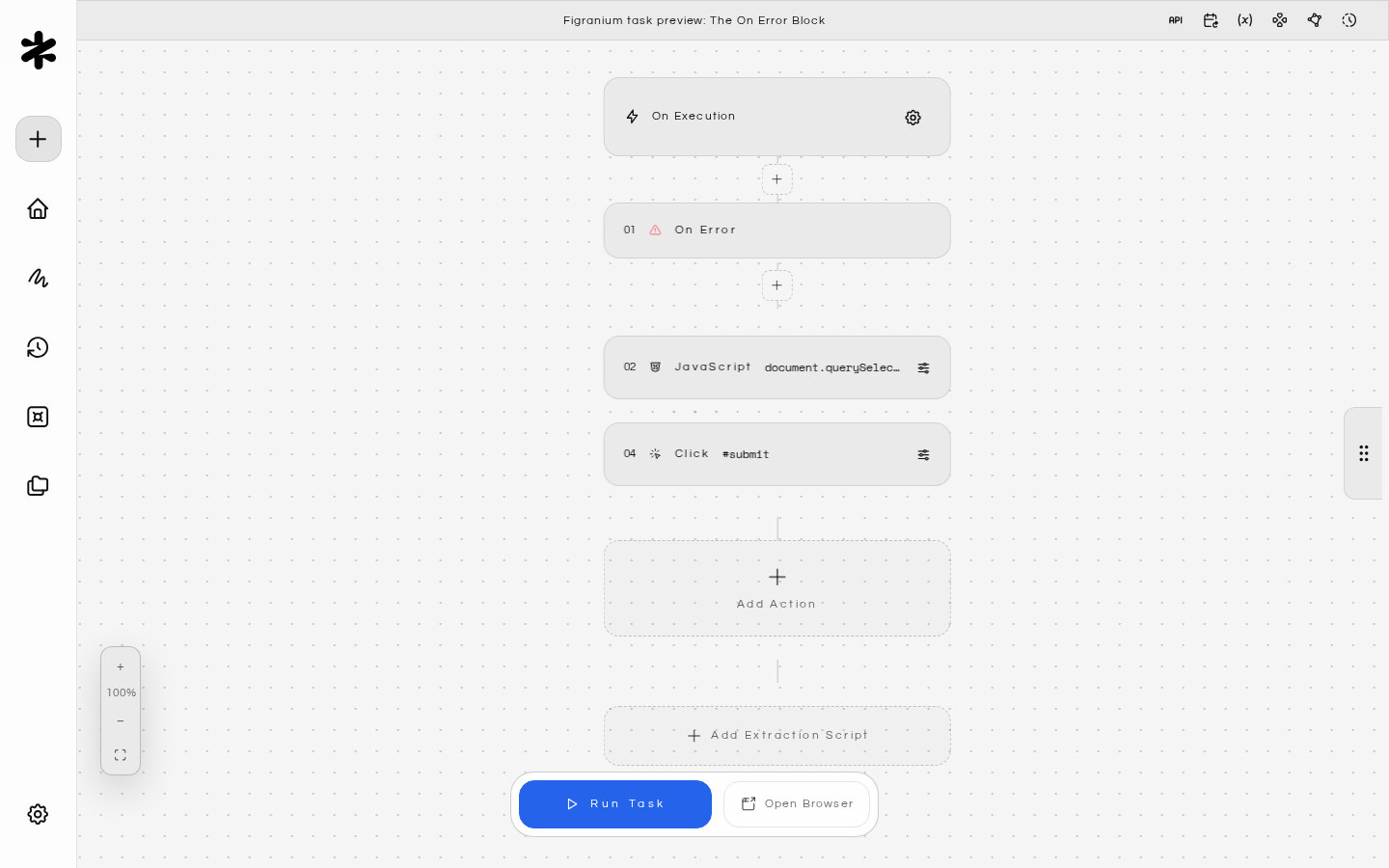
// Try clicking the button; if it fails, use JavaScript as a fallback
{ "type": "on_error" },
  { "type": "javascript", "value": "document.querySelector('#submit').click(); return true;" },
{ "type": "end" },
{ "type": "click", "selector": "#submit" }

Stop on Error with a Reason

Log the failure and stop the task cleanly:
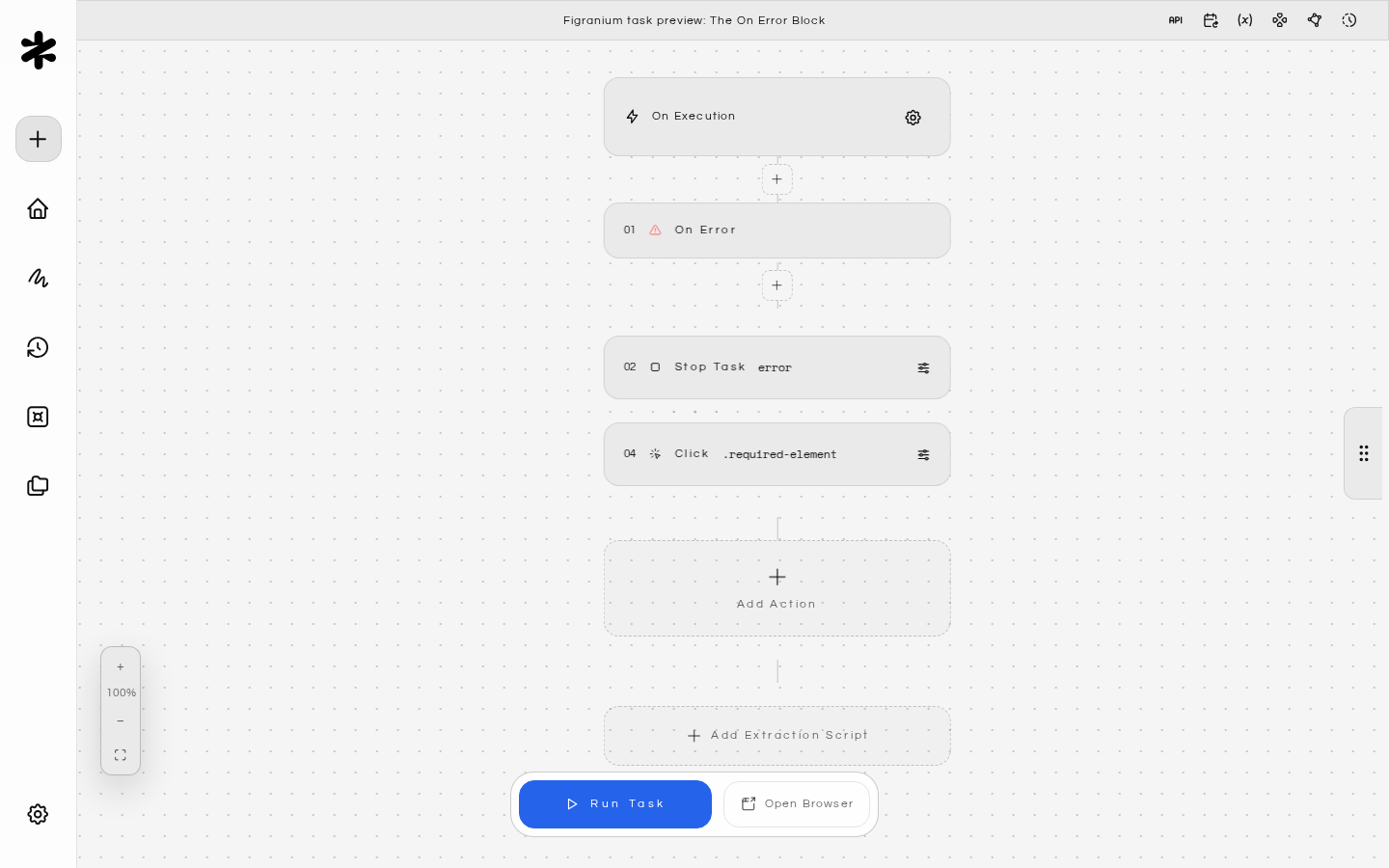
{ "type": "on_error" },
  { "type": "stop", "value": "error" },
{ "type": "end" },
{ "type": "click", "selector": ".required-element" }

Retry Patterns

Retry with a Counter Variable

Use a while loop combined with a counter to retry a failing action up to N times:
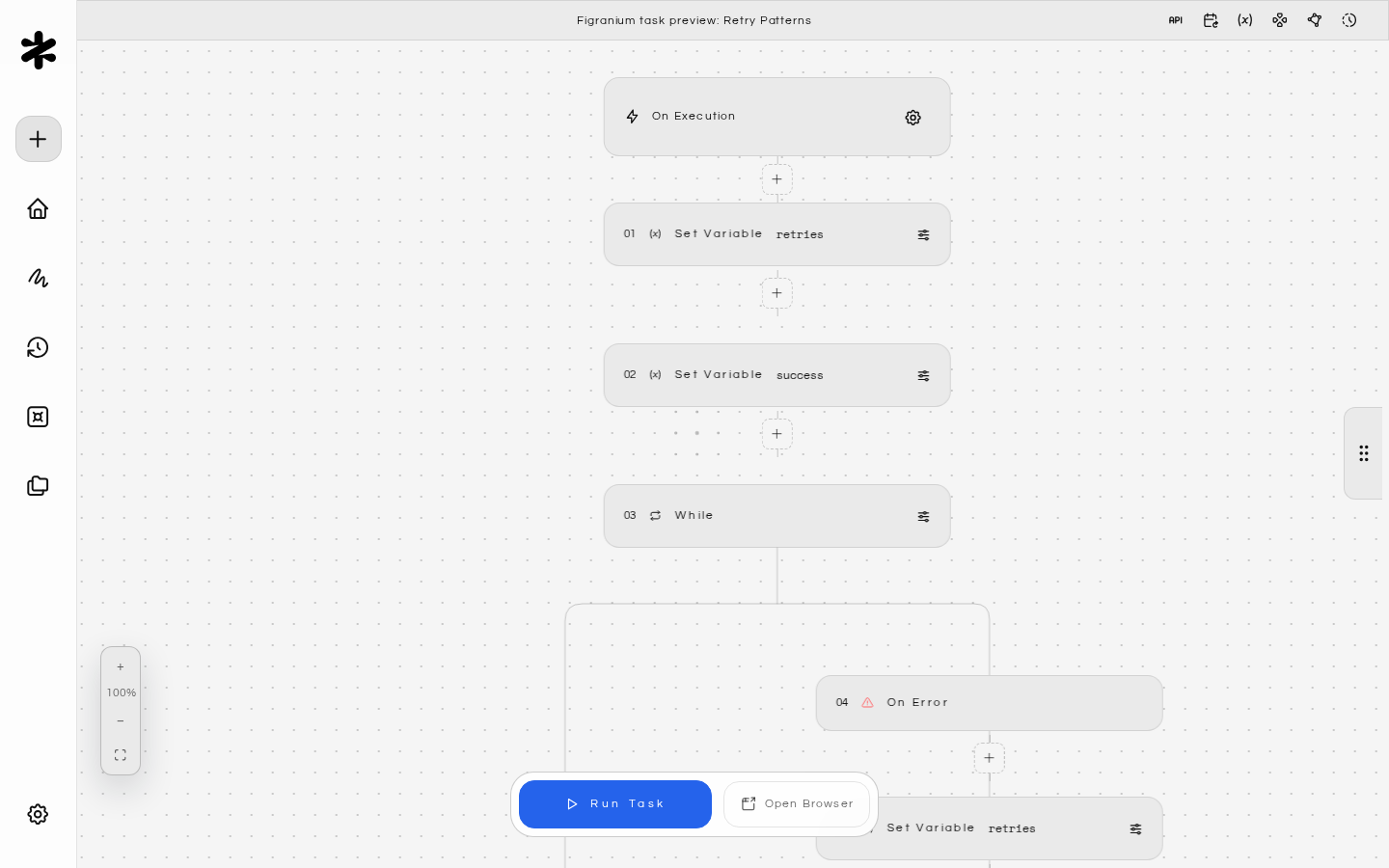
{ "type": "set", "varName": "retries", "value": "0" },
{ "type": "set", "varName": "success", "value": "false" },
{ "type": "while", "value": "{$retries} < 3 && {$success} === 'false'" },
  { "type": "on_error" },
    { "type": "set", "varName": "retries", "value": "{$retries} + 1" },
    { "type": "wait", "value": "2000" },
  { "type": "end" },
  { "type": "click", "selector": ".load-more-button" },
  { "type": "set", "varName": "success", "value": "true" },
{ "type": "end" }
This retries up to 3 times with a 2-second pause between attempts, then continues if any attempt succeeds.

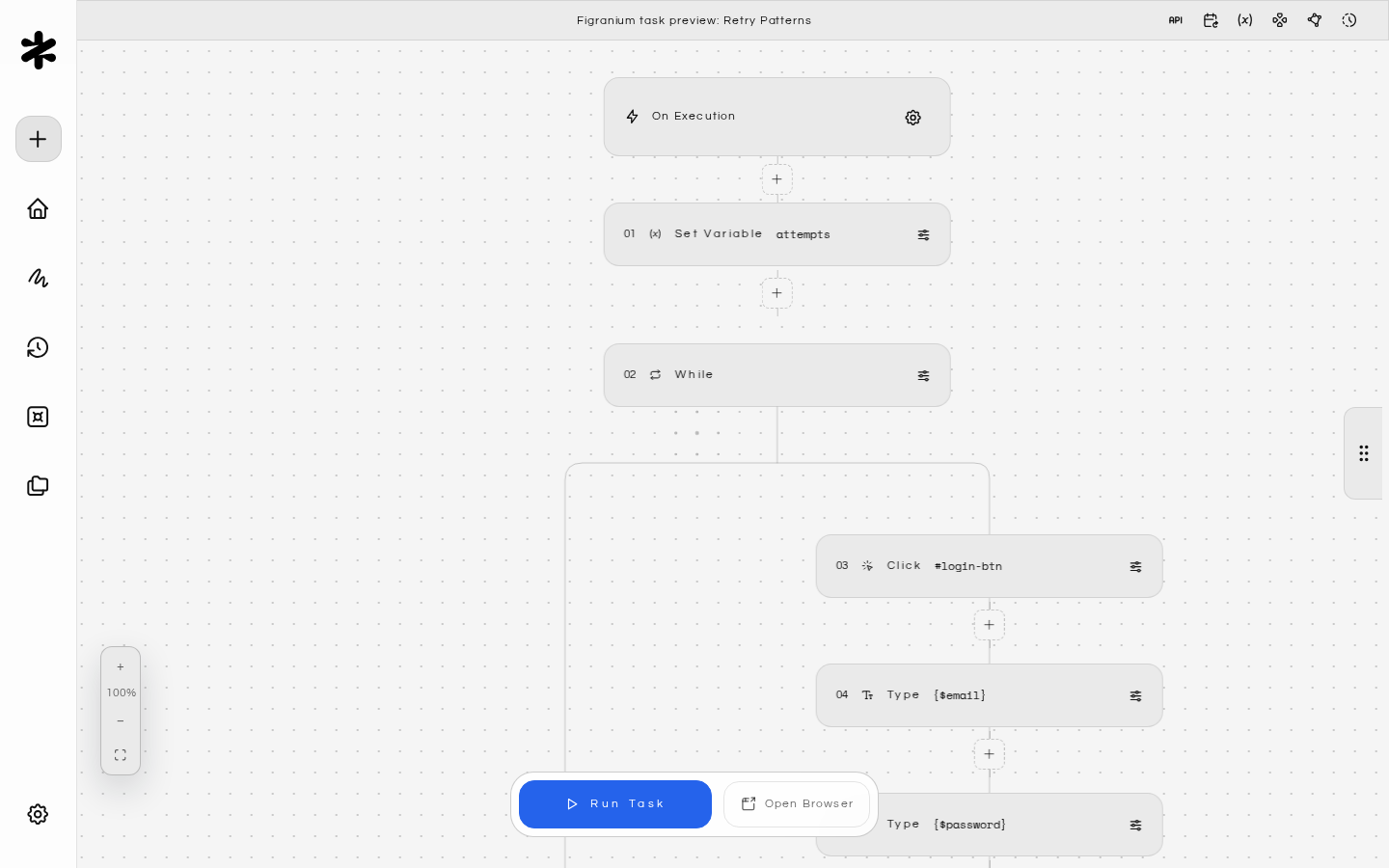
Retry a Login

{ "type": "set", "varName": "attempts", "value": "0" },
{ "type": "while", "value": "!exists('.dashboard') && {$attempts} < 5" },
  { "type": "click", "selector": "#login-btn" },
  { "type": "type", "selector": "#email", "value": "{$email}" },
  { "type": "type", "selector": "#password", "value": "{$password}" },
  { "type": "click", "selector": "[type='submit']" },
  { "type": "wait", "value": "3000" },
  { "type": "set", "varName": "attempts", "value": "{$attempts} + 1" },
{ "type": "end" }

Handling Popups and Modals

Popups that appear unpredictably are a common cause of task failures. Handle them proactively.

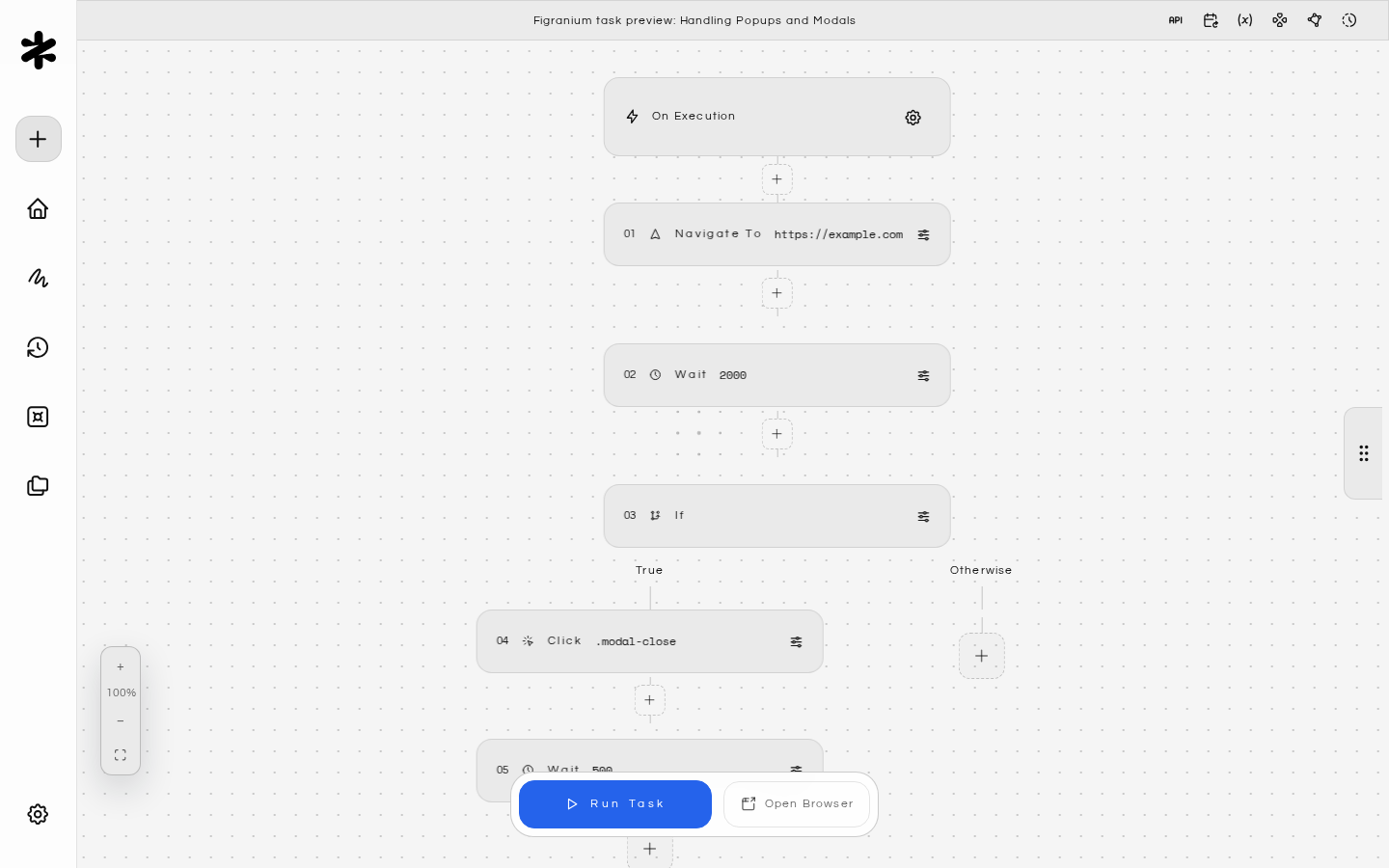
Check and Dismiss Before Proceeding

{ "type": "navigate", "value": "https://example.com" },
{ "type": "wait", "value": "2000" },
{ "type": "if", "value": "exists('.modal-overlay')" },
  { "type": "click", "selector": ".modal-close" },
  { "type": "wait", "value": "500" },
{ "type": "end" },
{ "type": "click", "selector": ".main-content" }

Dismiss Any Popup on Every Page

Use a sub-task triggered via start to handle common popups at the beginning of every task:
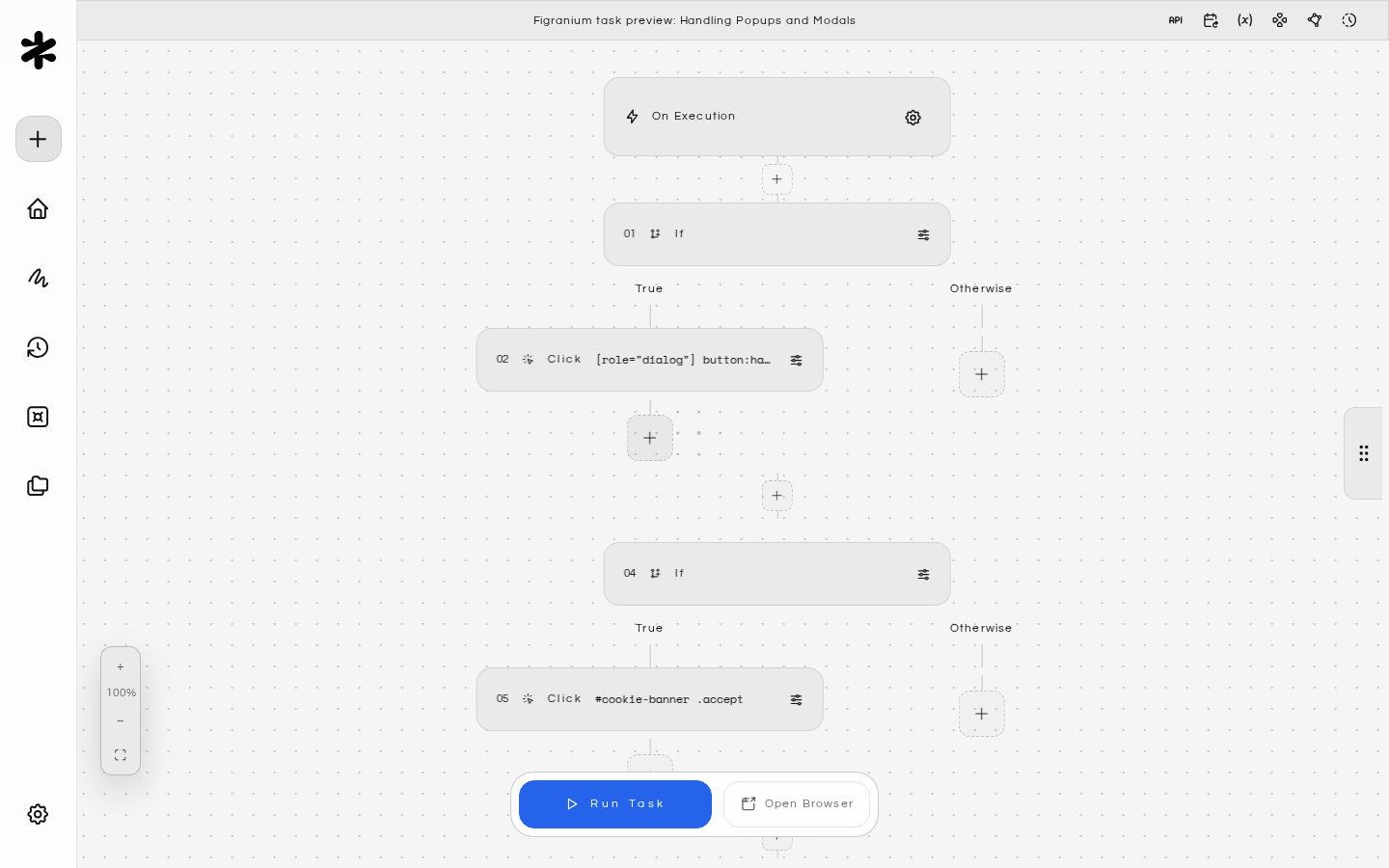
// popup-handler task
[
  { "type": "if", "value": "exists('[role=\"dialog\"] button:has-text(\"Close\")')" },
    { "type": "click", "selector": "[role=\"dialog\"] button:has-text(\"Close\")" },
  { "type": "end" },
  { "type": "if", "value": "exists('#cookie-banner')" },
    { "type": "click", "selector": "#cookie-banner .accept" },
  { "type": "end" }
]

// Main task
[
  { "type": "navigate", "value": "https://example.com" },
  { "type": "start", "value": "popup-handler-task-id" },
  // ... rest of task
]

Timeout Strategies

Each action block can have its own timeout (in milliseconds). Use shorter timeouts for elements that should appear quickly, and longer ones for slow-loading content.
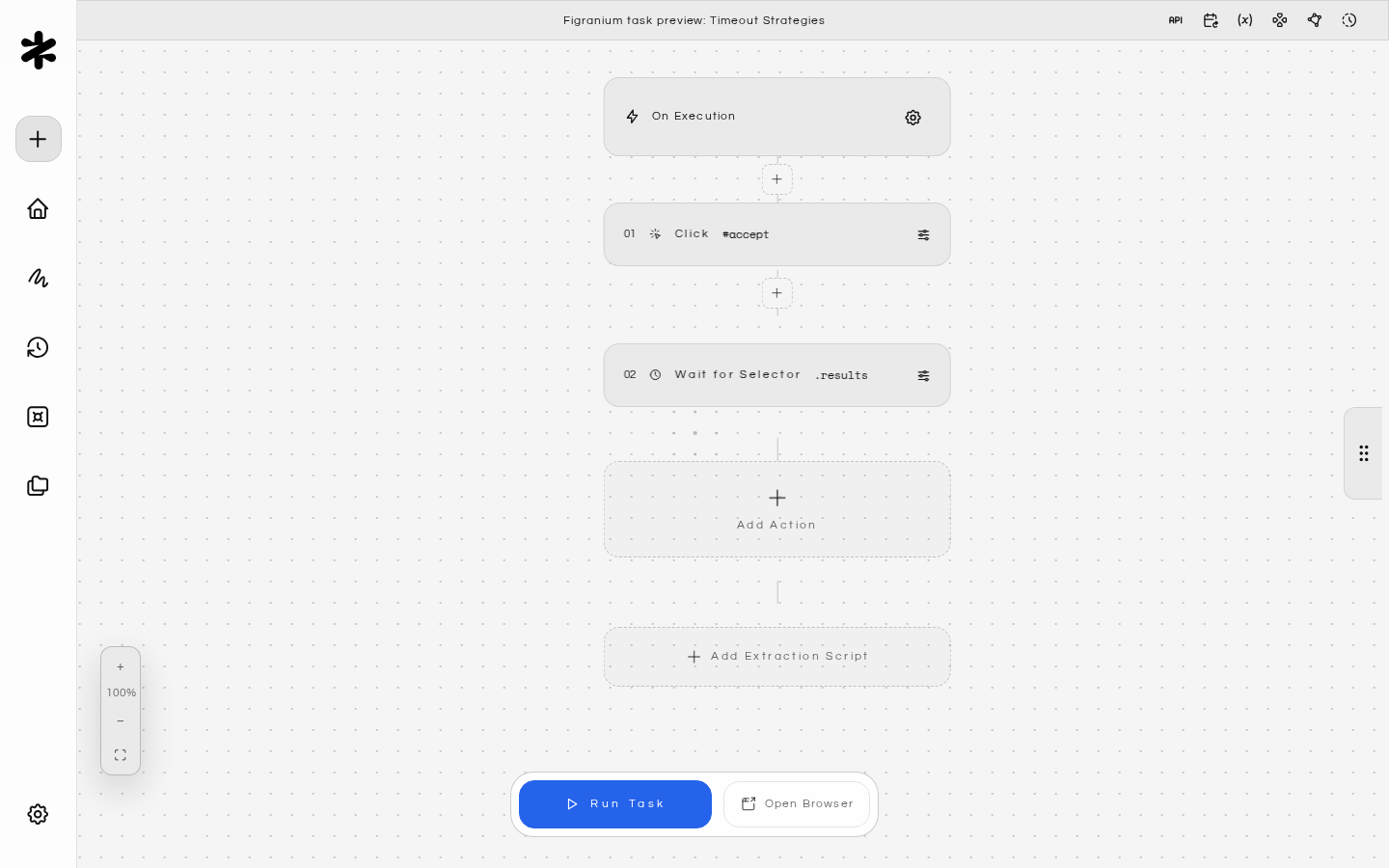
// Short timeout for something that should already be on the page
{ "type": "click", "selector": "#accept", "timeout": 2000 }

// Longer timeout for a result that loads after an API call
{ "type": "wait_selector", "selector": ".results", "timeout": 15000 }
Use on_error around short-timeout actions to make them non-fatal when the element doesn’t appear.

Logging Errors for Inspection

Use a javascript block inside on_error to log diagnostic information to the execution output:
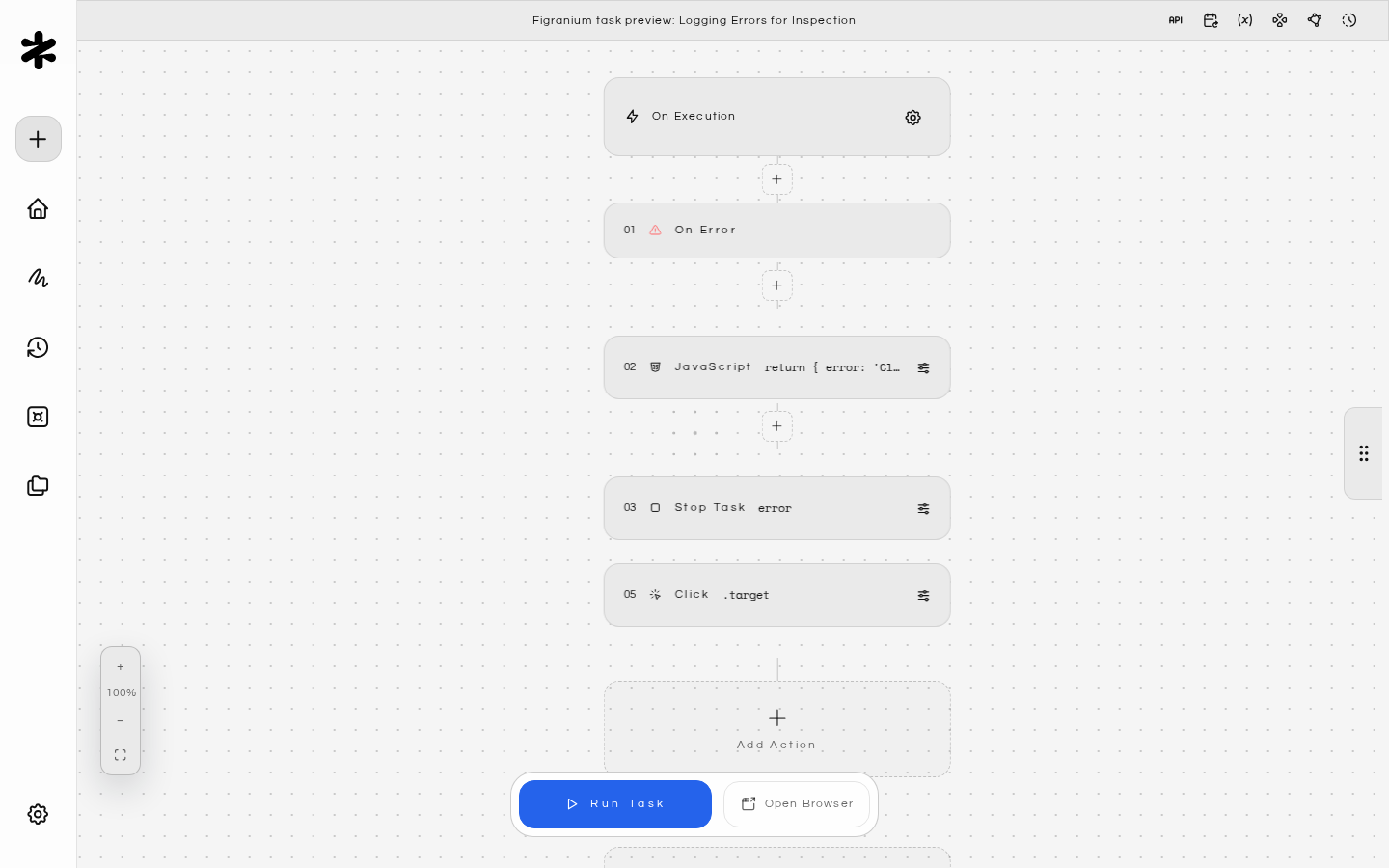
{ "type": "on_error" },
  {
    "type": "javascript",
    "value": "return { error: 'Click failed', url: window.location.href, title: document.title }"
  },
  { "type": "stop", "value": "error" },
{ "type": "end" },
{ "type": "click", "selector": ".target" }
The returned object appears in the execution detail view, giving you context about what the page looked like when the failure occurred.

Output Provider Error Handling

When using Output Providers, you can control what happens if the data push to an external service fails:
  • onError: "ignore" (default): The execution is marked as successful even if the push fails.
  • onError: "fail": The execution is marked as failed if the push fails.
Choose fail when data delivery is critical and you want alerts on push failures.