

Why Modular Workflows?
As automations grow, a single monolithic task becomes hard to maintain. Modular workflows let you:Reuse
Common sub-flows (login, cookie consent, pagination) across many tasks.
Debug
Individual components in isolation without re-running the entire workflow.
Organize
Large automation suites into readable, focused building blocks.
Share
Components with your team as standalone, documented tasks.
The Start Task Action
The Start Task action triggers another task by its ID, running it as a sub-task within the current execution context.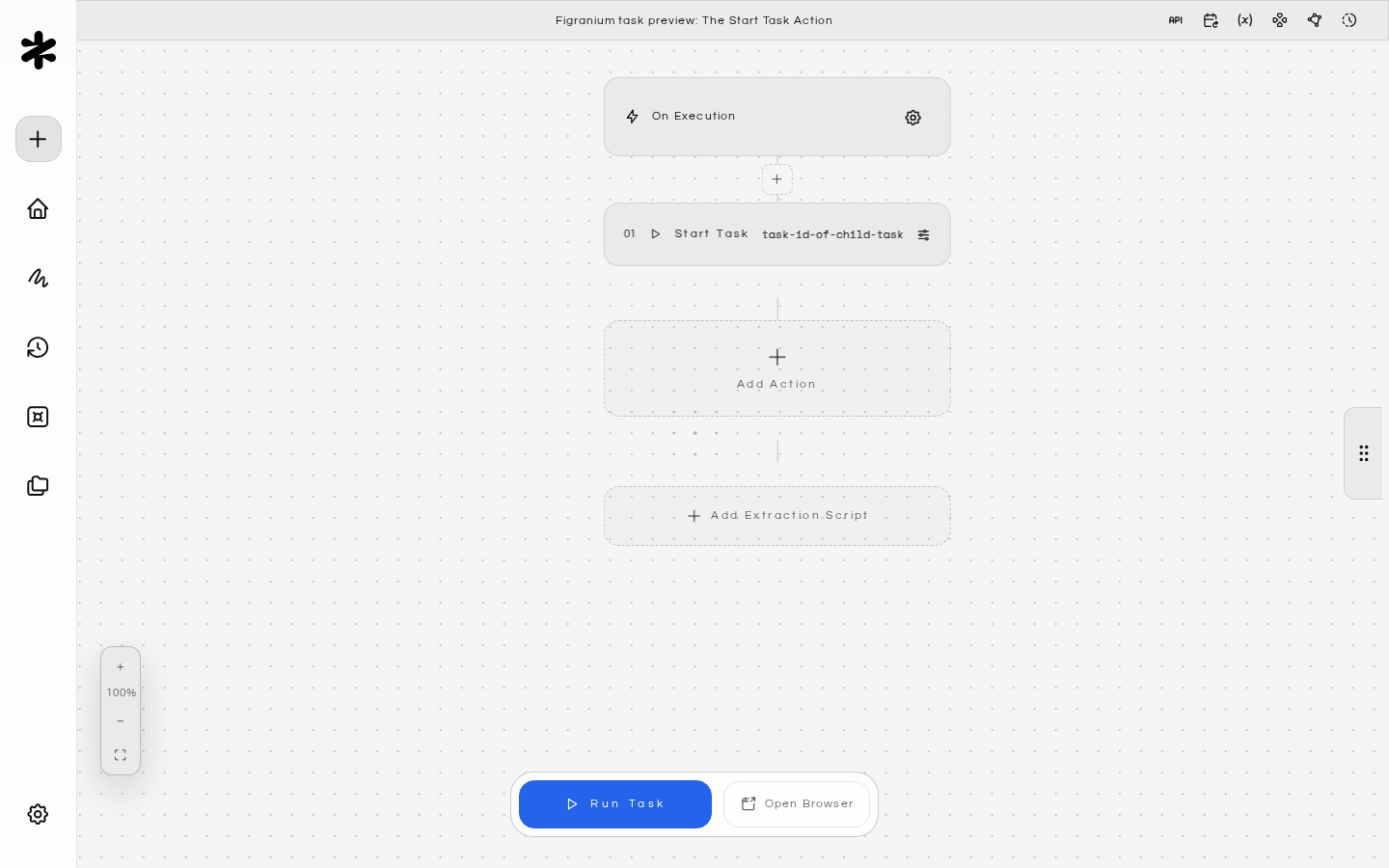
- The child task runs to completion before the parent continues.
- Variables from the parent task are passed down to the child task automatically.
- The child task’s
block.output(extraction result) is available back in the parent asblock.outputafter the Start Task block. - If the child task fails, the parent task’s error handling applies.
How to Chain Tasks
1
Create the Child Task
Build a standalone task that handles a specific sub-flow. For example, a “Handle Cookie Banner” task: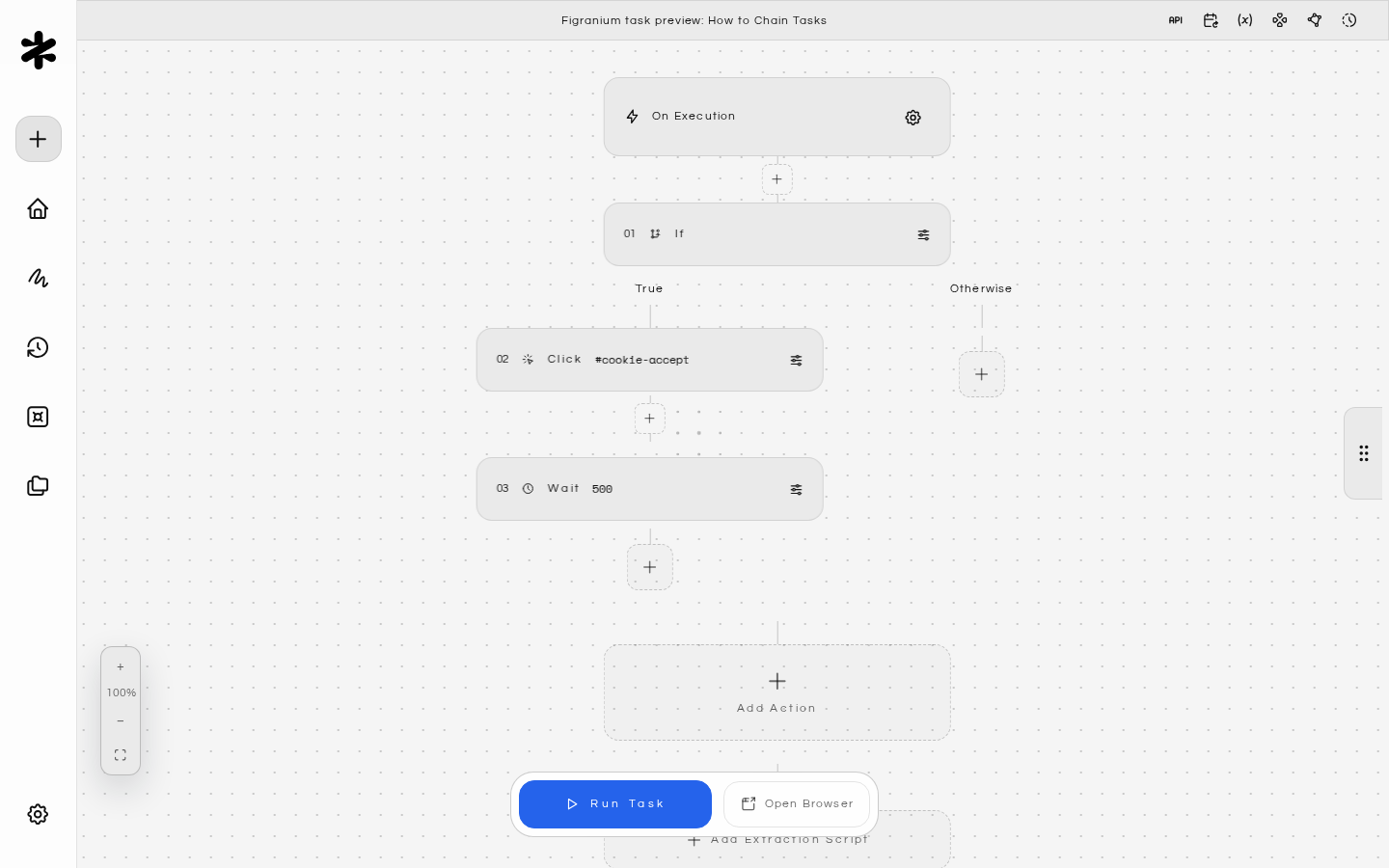
2
Add start to Your Main Task
In your main task, add a Start Task block where you want the child task to run: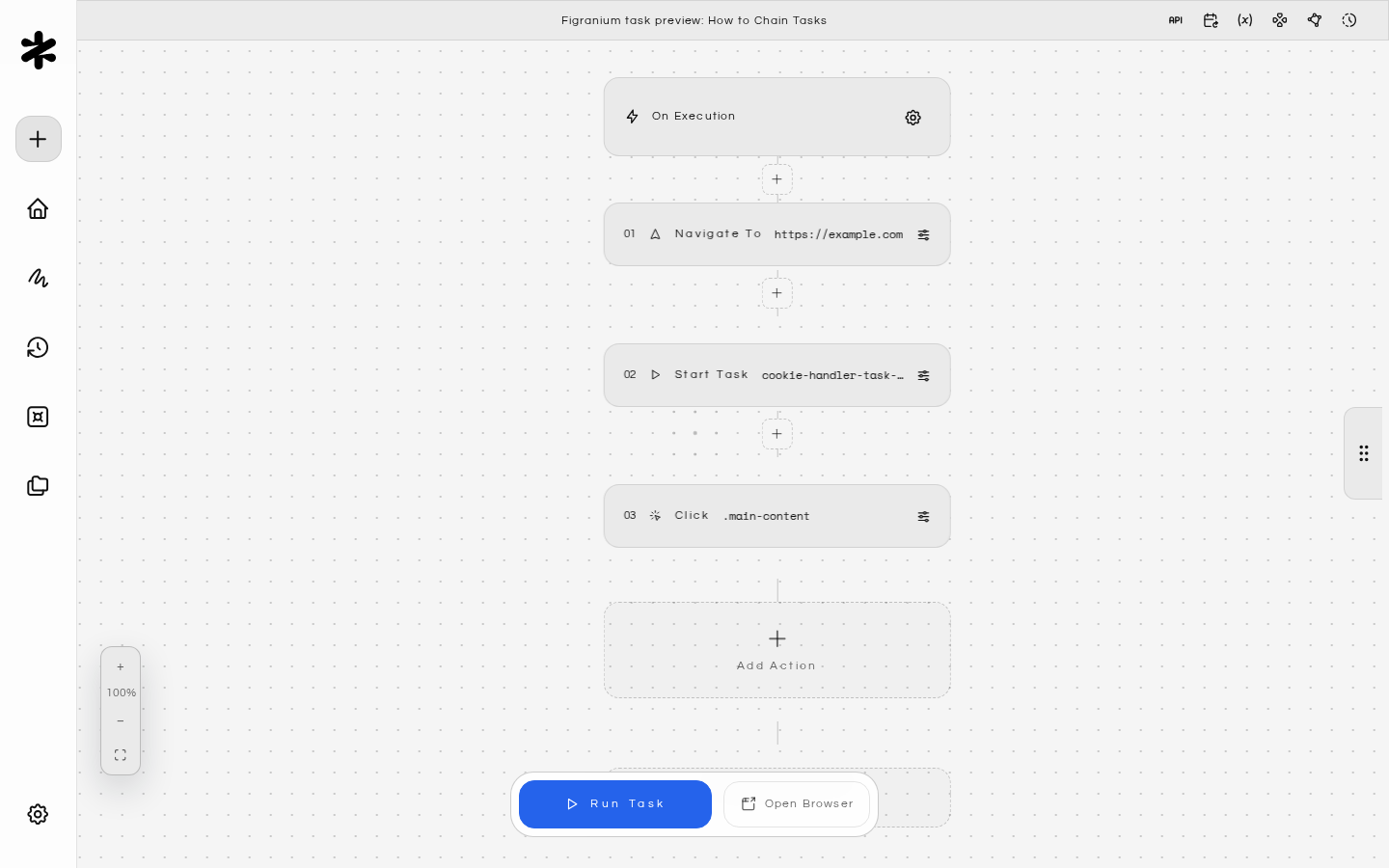
3
Pass Variables to Child Tasks
Variables defined in the parent task are automatically available in the child task using the same 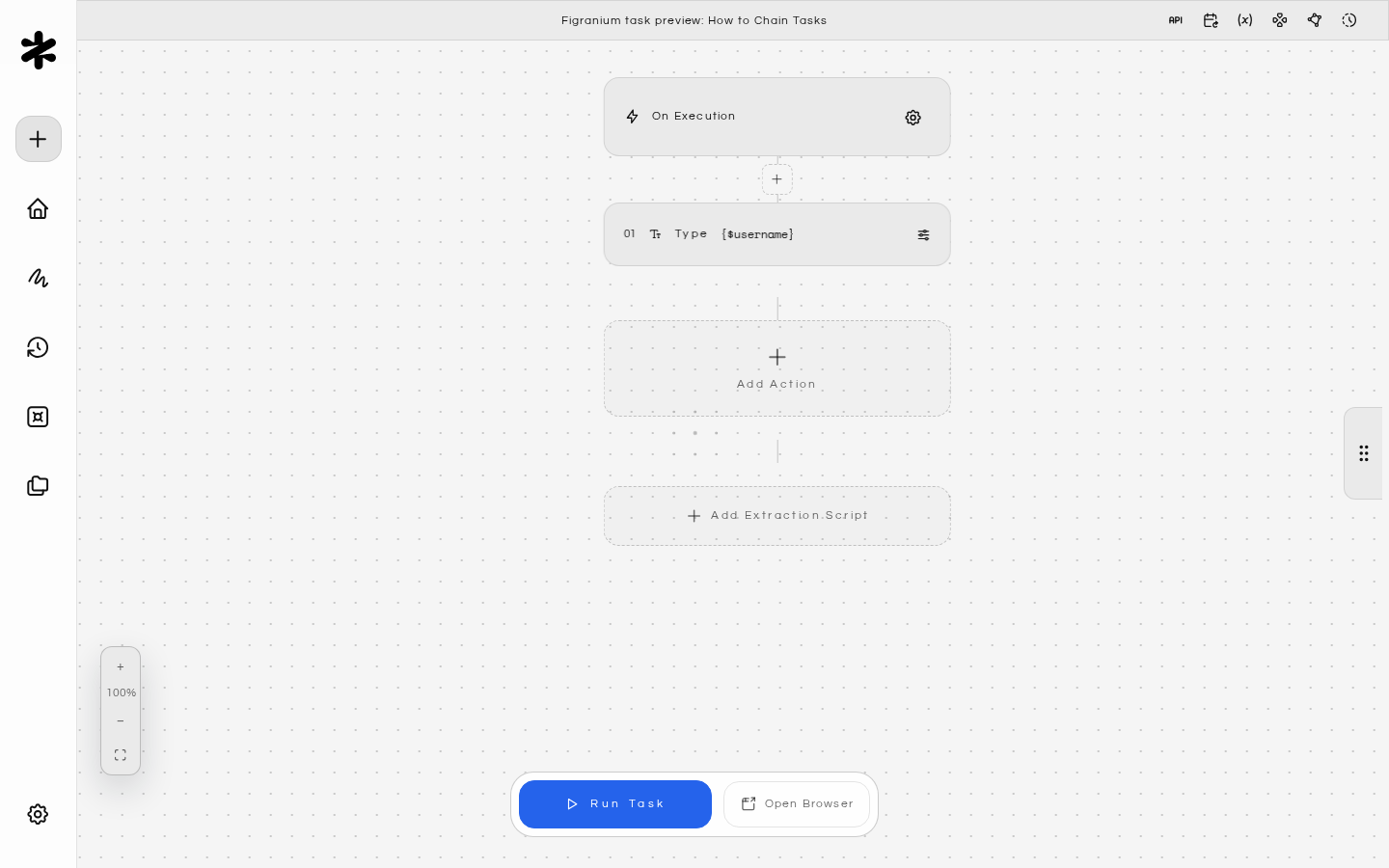
{$varName} syntax. There is no special configuration needed.Common Modular Patterns
Pattern 1: Shared Login Task
Create a single “Login” task and call it at the start of all tasks that require authentication: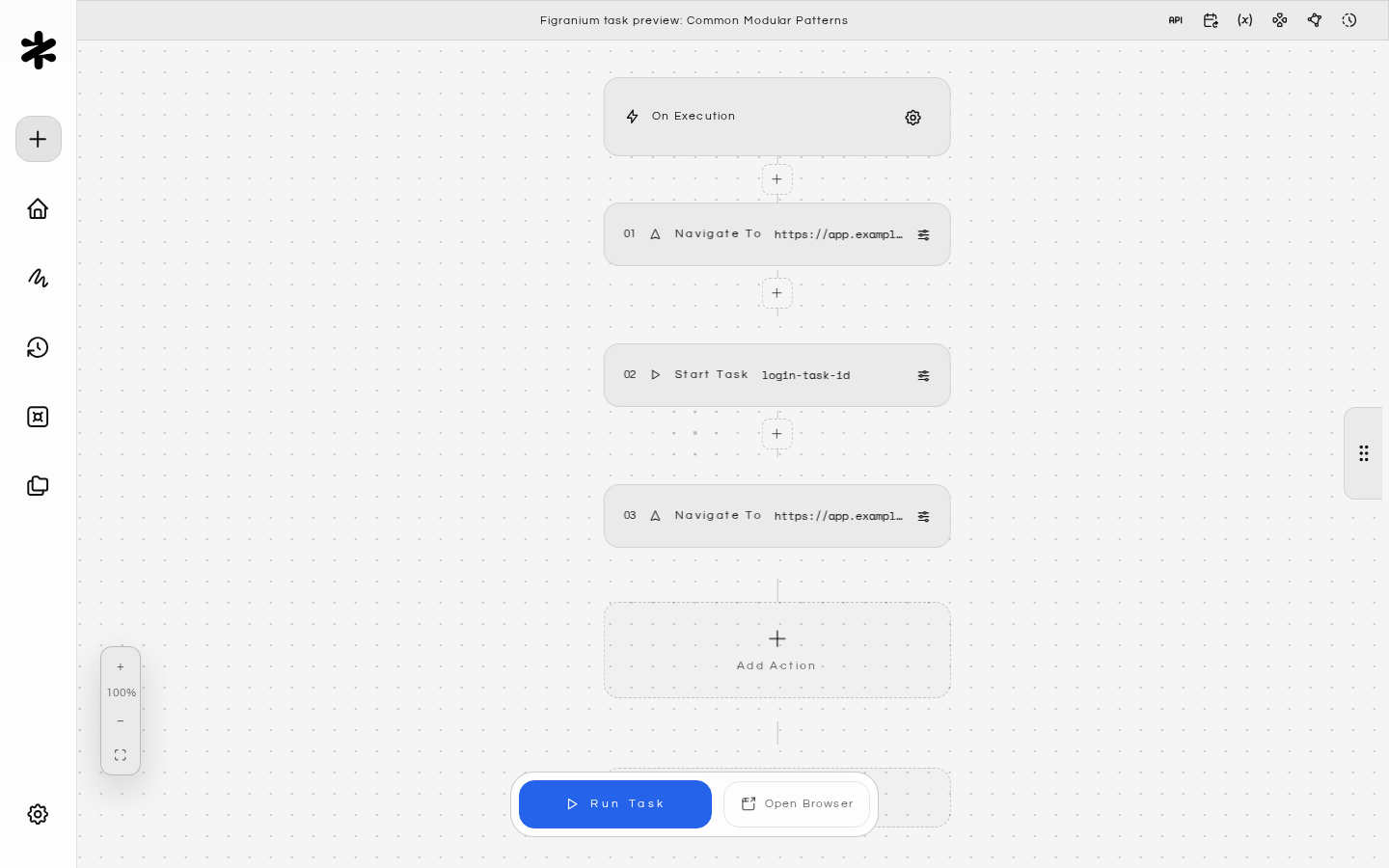
Pattern 2: Paginated Scraping
Break pagination into a loop calling a “Scrape One Page” sub-task: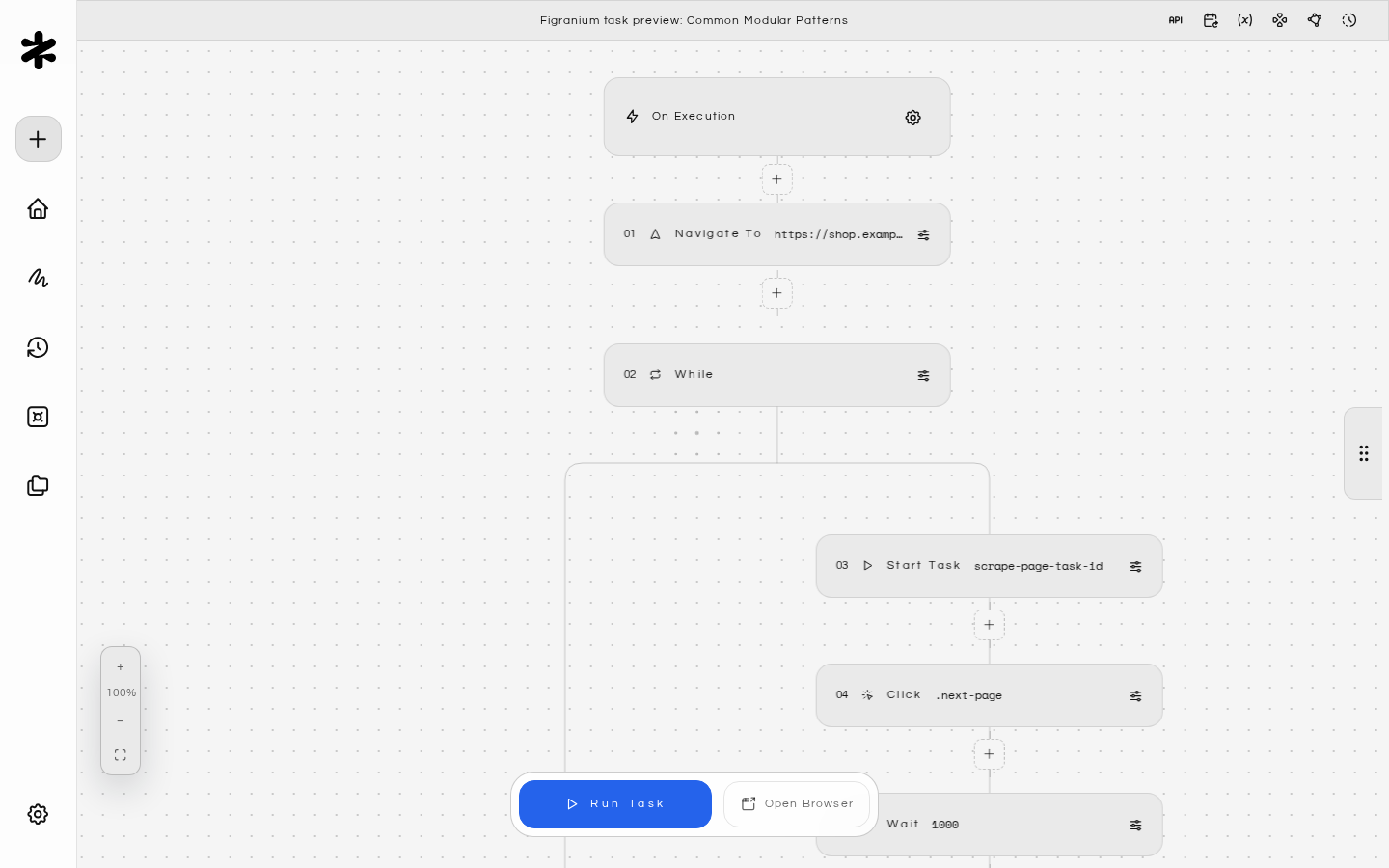
Pattern 3: Error Recovery
Use an On Error block to trigger a recovery sub-task when something goes wrong: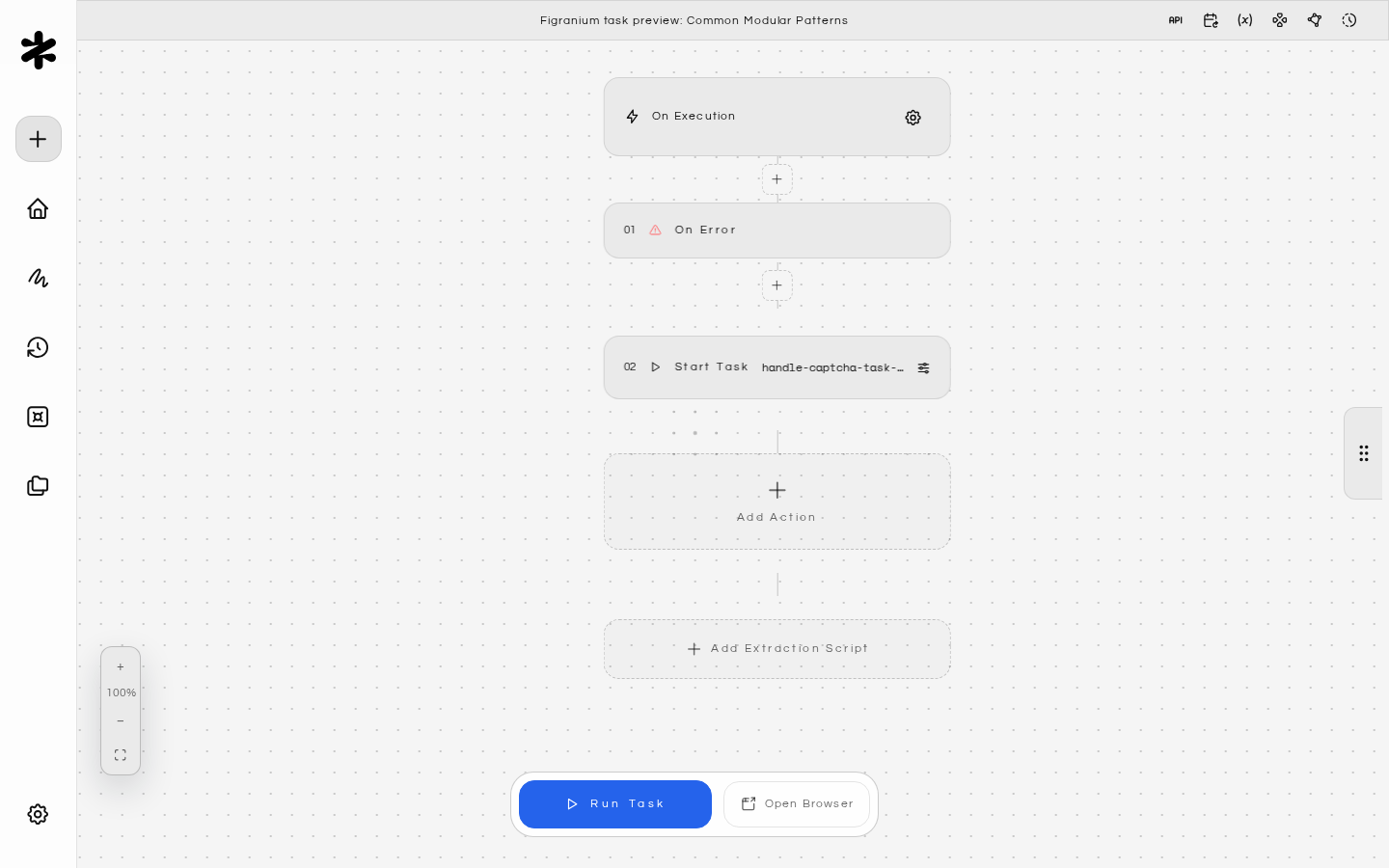
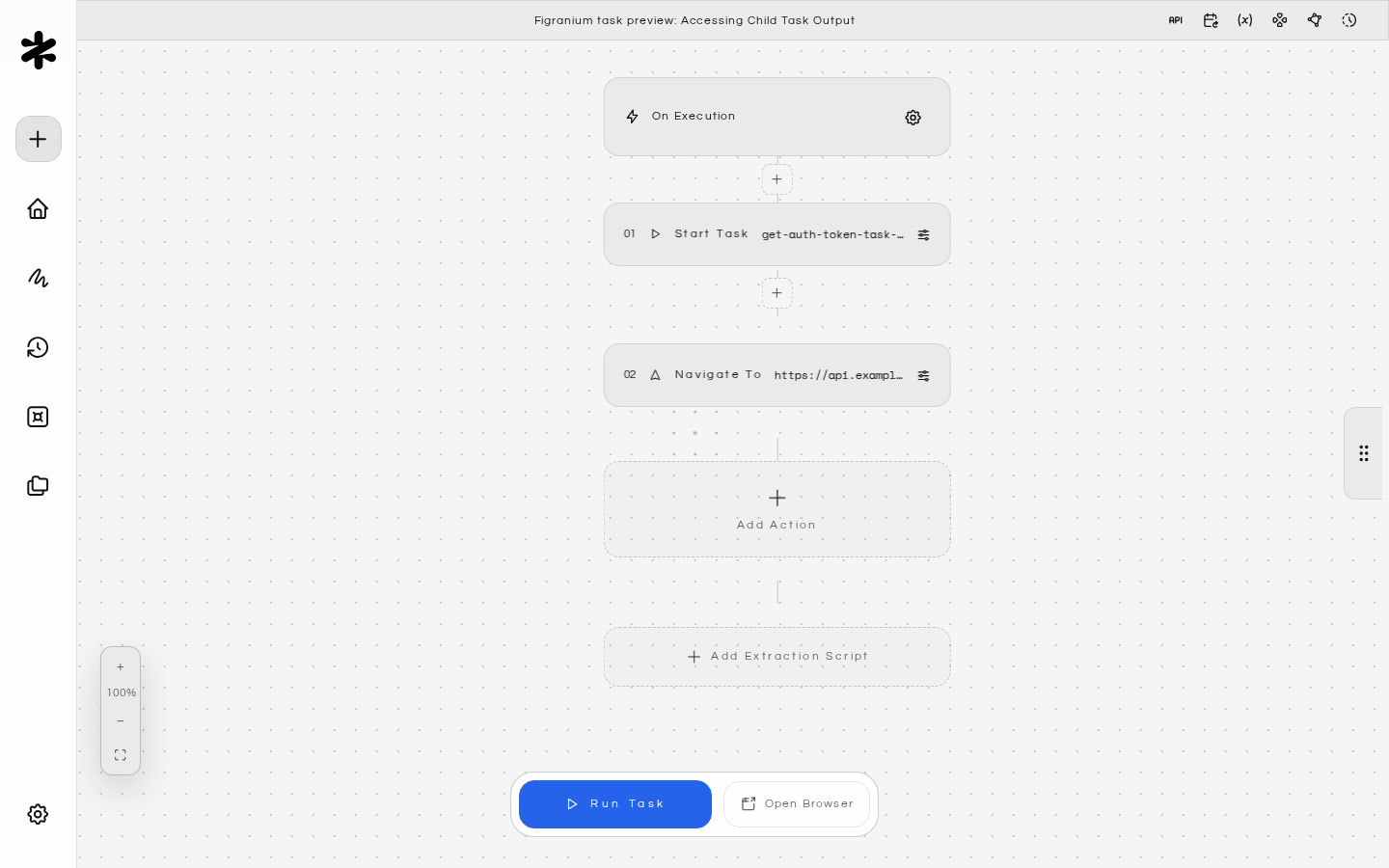
Accessing Child Task Output
After a Start Task block, the child task’s extraction result is available inblock.output:
Recursive Flows
It is technically possible to create recursive chains (Task A starts Task B, which starts Task A). This can be useful for retry loops or indefinite monitoring tasks. Always include a termination condition to prevent infinite loops: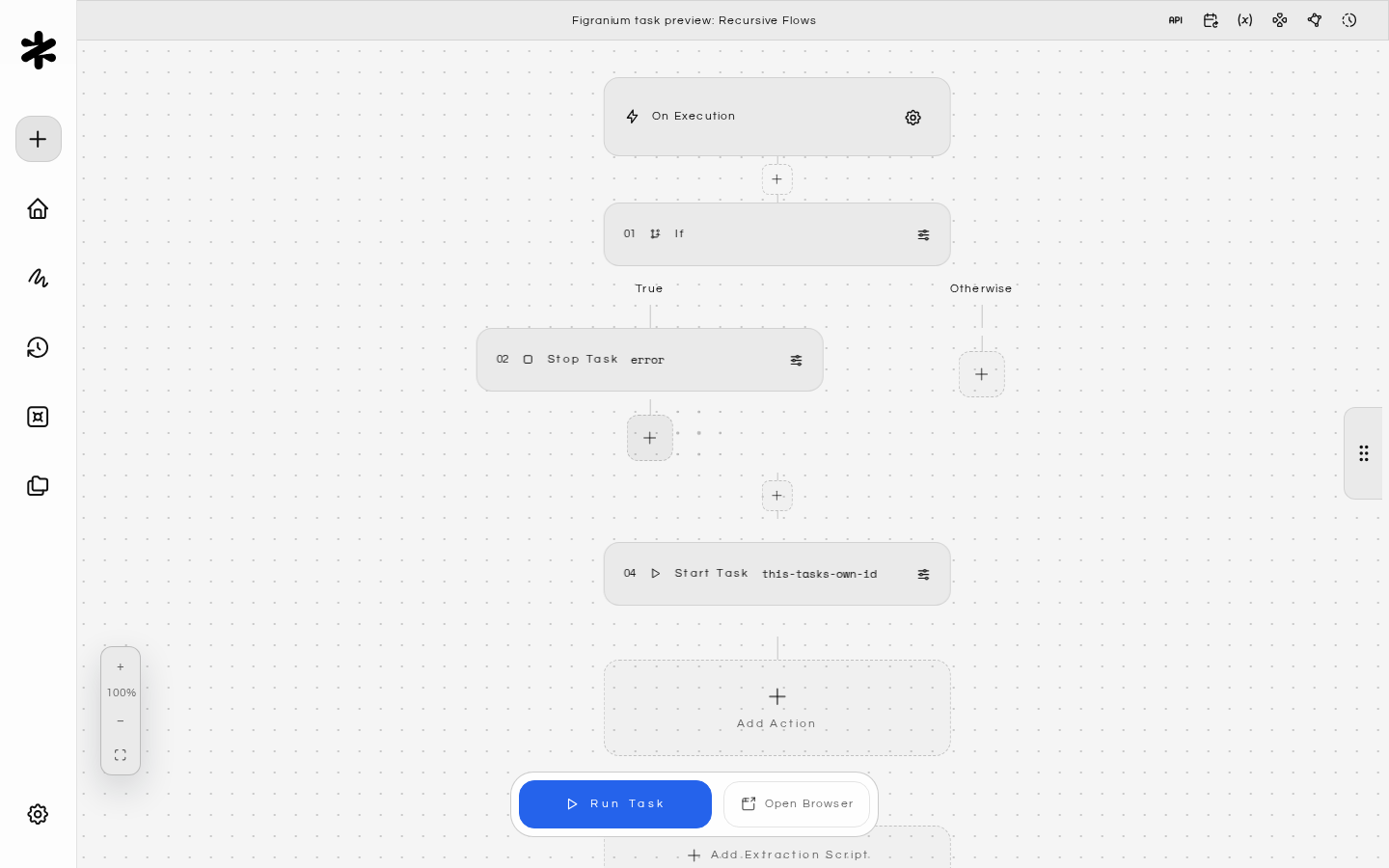
Finding Task IDs
You can find a task’s ID in several ways:- Dashboard URL: When you open a task, the URL contains the task ID (e.g.,
/editor/task_abc123). - Export: The exported JSON file includes the task ID at the top level.
Task ID validation
The Start Task block sanitizes the task ID before issuing the internal API call. Only alphanumeric characters, underscores (_), and hyphens (-) are preserved; any other character, including path separators, query strings, and whitespace, is stripped out.
If sanitization removes every character (for example, when a template variable resolves to ../../api/clear-cookies? or any other non-conforming string), the action fails fast with Invalid task id. and no request is made. This prevents a crafted variable value from being used to probe other internal endpoints through the Start Task block.
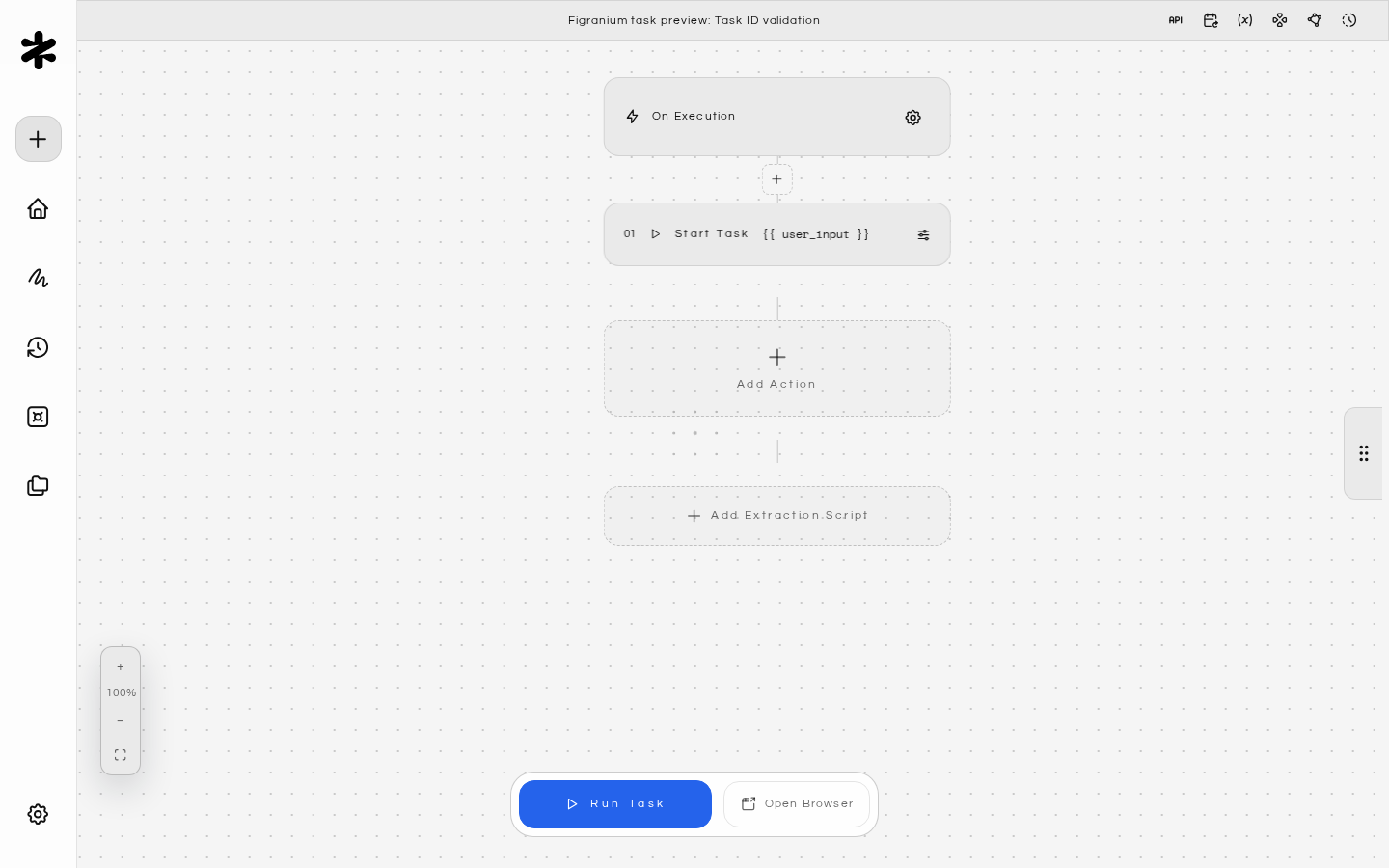
user_input resolves to task_abc123, the action runs normally. When it resolves to ../../api/clear-cookies?, the action errors with Invalid task id. and the parent task continues with that step marked failed.
Variables
Pass dynamic data between parent and child tasks.
Control Flow
Build loops and conditionals around sub-task calls.
Error Handling
Make your modular workflows resilient to failures.
Task Scheduling
Schedule recurring workflows that chain multiple tasks.